
Pro Google Analytics in Astro with Partytown
A practical integrating Google Analytics in Astro with Partytown. This guide covers performance considerations, View Transitions, and deployment tips.
Integrating Google Analytics into Astro is relatively straightforward. However, if you’re aiming for better performance and compatibility with features like View Transitions, you may need some additional configuration.
Production Note: This guide is based on experiments I ran on farrosfr.com ↗. At the moment, Google Analytics is not installed there due to several considerations that will be discussed later.
This article continues from Add Google Analytics to Astro: The Complete Guide ↗. Here, we’ll refactor the setup using Partytown to offload third-party scripts, handle View Transitions more carefully, and update around five files.
The Strategy: Performance & Accuracy#
The general objective here focuses on two areas:
- Performance: Try to reduce the chance of Google Analytics affecting the main thread by using Astro’s Partytown integration.
- Accuracy: Make sure page navigations are tracked properly, especially when using Astro’s client-side routing (View Transitions).
Step 1: Configure Partytown (astro.config.ts)#
First, we configure Astro to process third-party scripts with Partytown.
The File: astro.config.ts
This is your project’s central configuration file. Here, we add the Partytown integration.
// astro.config.ts
import { defineConfig } from 'astro/config';
import partytown from '@astrojs/partytown';

export default defineConfig({
  // ...other configs
  integrations: [
    // ...other integrations
    partytown({
      config: {
        forward: ['dataLayer.push', 'gtag'],
      },
    }),
  ],
});partytown({ ... }): Enables the integration.config: { forward: [...] }: This part creates a bridge fordataLayer.pushandgtagfrom the main thread (where your UI runs) to the web worker where Partytown executes the Google Analytics script. This allows your code to callgtag()as usual, while the heavy lifting happens in a separate thread.
Step 2: Secure Your ID (.env & src/type.d.ts)#
This step follows a common best practice: storing your Measurement ID in environment variables and adding TypeScript typings.
The Files:
.env(in your project root)src/type.d.ts
1. The .env file:
# .env
PUBLIC_GA_ID=YOUR_MEASUREMENT_IDThe PUBLIC_ prefix tells Astro that this variable can be exposed to client-side scripts.
If your repository is public, avoid committing your actual Measurement ID.
Instead, define the same variable in your deployment environment.
For GitHub Actions:
- Go to Repository → Settings
- Open Secrets and variables → Actions
- Click New repository secret
- Add:
PUBLIC_GA_ID = YOUR_MEASUREMENT_ID
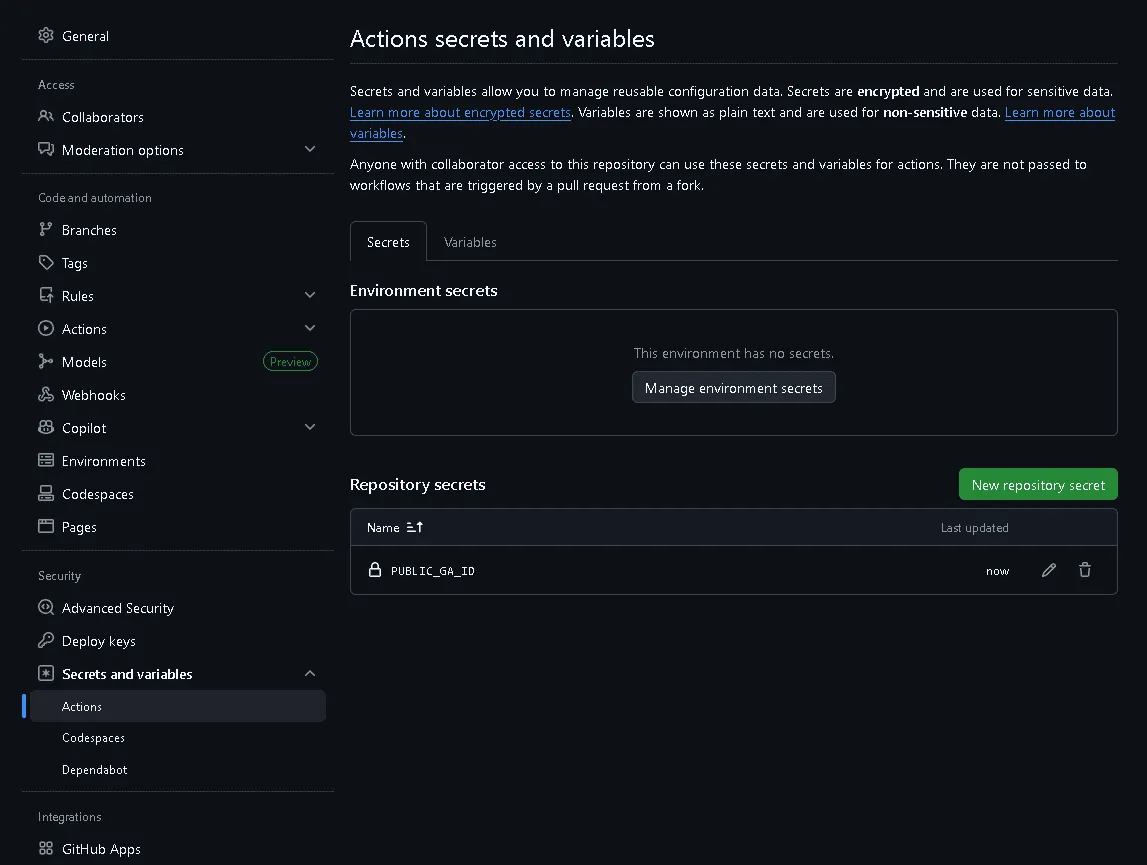
This ensures the ID is injected securely at build time without exposing it in the repository.
2. The src/type.d.ts file:
// src/type.d.ts
declare global {
  interface Window {
    dataLayer: Record<string, any>[];
    gtag: (...args: any[]) => void;
  }
}- This setup helps avoid hardcoding your Measurement ID directly in source files.
- The TypeScript declaration reduces type warnings during development and improves editor support.
Step 3: Initial Load (src/components/BaseHead.astro)#
Next, we handle the initial loading of the Google Analytics script inside a head component.
The File: src/components/BaseHead.astro
This component manages everything inside the <head> tag.
---
// src/components/BaseHead.astro
const gaId = import.meta.env.PUBLIC_GA_ID;
---

<!-- ... other head tags ... -->

{/* Google Analytics */}
{
  gaId && import.meta.env.PROD && (
    <>
      <script
        type='text/partytown'
        async
        src={`https://www.googletagmanager.com/gtag/js?id=${gaId}`}
      />
      <script type='text/partytown'>
        {`
          window.dataLayer = window.dataLayer || [];
          function gtag(){dataLayer.push(arguments);}
          gtag('js', new Date());
          gtag('config', '${gaId}', { 'send_page_view': false });
        `}
      </script>
    </>
  )
}- Variable Injection: We define
const gaId = import.meta.env.PUBLIC_GA_ID;in the frontmatter and then reference${gaId}inside the template literal. This allows Astro to replace the value at build time. Placingimport.meta.envdirectly inside the string block would likely not work as expected. - Conditional Loading:
gaId && import.meta.env.PRODensures the script only renders when an ID is available and the build is running in production. - Partytown Execution:
type='text/partytown'tells Partytown to execute the script inside a web worker, which may help reduce main-thread impact. - Disabling Auto Page Views:
gtag('config', ..., { 'send_page_view': false });turns off automatic page view tracking. This allows us to handle navigation tracking manually, which can be more reliable with View Transitions.
Step 4: Tracking Navigation (src/layouts/BaseLayout.astro)#
Now we manually send page view events whenever a user navigates.
The File: src/layouts/BaseLayout.astro
We add a small inline script near the end of the <body>.
---
// src/layouts/BaseLayout.astro
---
<html lang="en-US">
  <head>
    <BaseHead />
    {/* ... */}
  </head>
  <body>
    {/* ... page content ... */}

    <script is:inline>
      document.addEventListener('astro:page-load', () => {
        if (typeof window.gtag === 'function') {
          window.gtag('event', 'page_view', {
            page_title: document.title,
            page_location: window.location.href,
          });
        }
      });
    </script>
  </body>
</html>is:inline: This ensures the script is placed directly into the HTML without bundling. That way, it can safely listen for DOM events.astro:page-loadEvent: We useastro:page-load, which generally fires after the page is fully loaded and visible, including after a View Transition completes.- Manual
page_viewEvent: When triggered, we send apage_viewevent to Google Analytics. Thegtagfunction here is forwarded via Partytown.
Step 5: Deployment (.github/workflows/deploy.yml)#
Finally, we make sure the Measurement ID is available during the build process. If you’re deploying to GitHub Pages, this can be done using GitHub Actions secrets.
The File: .github/workflows/deploy.yml
# .github/workflows/deploy.yml

jobs:
  build:
    runs-on: ubuntu-latest
    env:
      PUBLIC_GA_ID: ${{ secrets.PUBLIC_GA_ID }}
    steps:
      - name: Checkout your repository using git
        uses: actions/checkout@v4
      - name: Install, build, and upload your site
        uses: withastro/action@v2
# ...- First, go to your GitHub repository’s Settings > Secrets and variables > Actions, then create a New repository secret named
PUBLIC_GA_IDwith your Measurement ID as its value. - The
env:block makes this secret available during the build. Thewithastro/action@v2step will then expose it to Astro, allowingimport.meta.env.PUBLIC_GA_IDto resolve correctly at build time.
Conclusion#
By coordinating these five files, you can build a more performance-aware Google Analytics setup in Astro. While this approach may not be necessary for every project, it can offer better control over tracking behavior, especially in sites that rely on View Transitions and client-side navigation.
If this guide helped you think differently about analytics and performance in Astro, feel free to share it with other builders who care about clean implementations.
I regularly write about Astro, performance optimization, and practical web engineering experiments.
You can explore more articles at 👉 https://farrosfr.com ↗
If you have your own approach to handling analytics (or decided to skip it entirely), I’d genuinely love to hear your perspective.