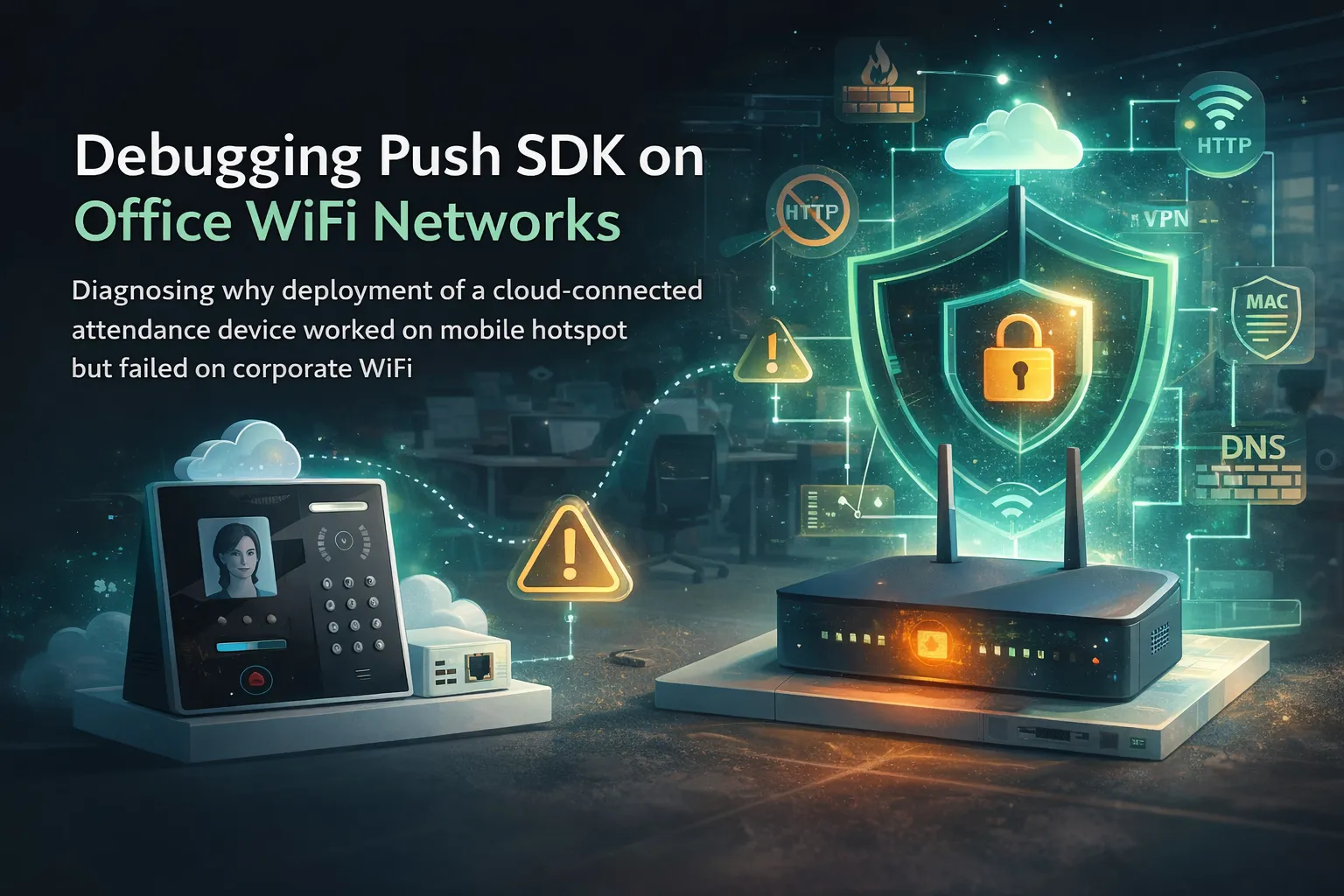
Deploying a face recognition attendance device sounds simple—connect it to WiFi, point it to the server, and you’re done.
In reality? Network policies can turn a 30-minute setup into a full debugging session.
This article documents a real-world deployment of a cloud-connected attendance device, the network issues encountered, and the technical reasoning behind the final diagnosis.
1. Device Overview#
The deployed device is a face recognition attendance terminal with:
- WiFi (2.4G)
- HTTP / HTTPS support
- Push SDK integration
- Local Web UI configuration
- Cloud server connectivity via custom port
Network Capabilities#
- DHCP or Static IP
- DNS configuration
- Custom HTTP push port
- Push SDK server configuration
This type of device behaves similarly to an IoT endpoint rather than a traditional PC client.
2. Deployment Architecture#
Cloud Setup#
The device was configured with:
- Domain:
fvivo.online - Protocol: HTTP
- Port: 8001
- Push SDK: Enabled
The cloud endpoint responded successfully via browser:
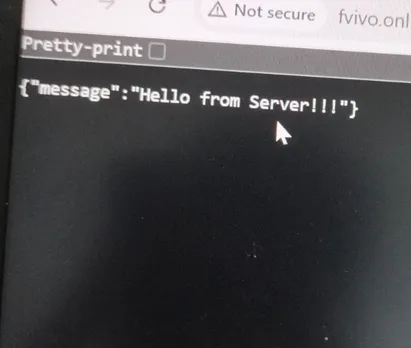
Response:
{"message":"Hello from Server!!!"}So the server was confirmed operational.
3. Initial Symptoms#
When connected to:
✅ Mobile Hotspot#
- Push SDK → Online
- Cloud sync → Working
❌ Office WiFi#
- Push SDK → Offline
- Internet available
- DNS resolving
- Port reachable from PC
This discrepancy was the key clue.
4. Network Testing & Validation#
4.1 Basic Connectivity#
From office WiFi:
ping 8.8.8.8Internet reachable.
4.2 Port Test#
Test-NetConnection fvivo.online -Port 8001Result:
TcpTestSucceeded : TrueSo:
- Port 8001 NOT globally blocked
- DNS working
- Outbound TCP allowed
Yet the device still showed:
Push SDK Status: Offline5. Why PC Works but Device Fails#
This is where deeper network behavior matters.
Enterprise WiFi networks often apply:
- MAC-based policy rules
- VLAN segmentation
- IoT isolation
- Layer 7 filtering
- Deep Packet Inspection (DPI)
- Application-based firewall rules
PC traffic is recognized as normal browser/client behavior.
IoT traffic (like Push SDK HTTP posts) may be:
- Classified differently
- Subject to stricter outbound filtering
- Blocked by security profile
Even when the port is technically open.
This explains why:
- PC → can access port 8001
- Device → cannot establish session
Hotspot works because:
- No L7 inspection
- No security policy
- No device classification
6. Why It Was NOT a Port Issue#
Many assume port blocking first.
However:
- Port 8001 reachable from PC
- Server confirmed live
- DNS resolving
- HTTP response verified
Therefore, traditional firewall port block was ruled out.
The issue was policy-level filtering, not transport-level blocking.
7. The Most Likely Root Causes#
Based on behavior:
- IoT isolation profile applied to unknown MAC
- VLAN separation for non-registered devices
- Application filtering for non-browser HTTP clients
- Security rule limiting outbound traffic by device type
In enterprise networks, security layers are often invisible to end users.
8. How to Communicate With IT (Best Practice)#
Instead of saying:
“Port 8001 is blocked.”
A better technical request is:
The attendance device cannot establish outbound TCP session to
fvivo.online:8001when connected to office WiFi, but works via mobile hotspot. PC connectivity test to the same endpoint succeeds. Please check if there is any MAC-based policy, VLAN isolation, or application filtering affecting this device.
This approach avoids blame and invites structured investigation.
9. Lessons Learned#
🔹 1. IoT devices are treated differently#
Enterprise WiFi does not treat all clients equally.
🔹 2. Port open ≠ Traffic allowed#
Firewall inspection can allow a port while still blocking specific traffic patterns.
🔹 3. Always compare environments#
If hotspot works and office WiFi does not: The network is the variable—not the device.
🔹 4. Push SDK over HTTPS is safer#
Using HTTPS (443) significantly reduces filtering issues in enterprise environments.
10. Recommended Best Practices#
- Use HTTPS (443) whenever possible
- Ask IT to whitelist device MAC address
- Document server IP and domain
- Keep network architecture diagrammed
- Avoid custom ports if corporate firewall policies are unknown
Final Opinion#
Deploying biometric attendance devices is no longer just a hardware task—it is a networking task.
Modern enterprise networks prioritize security, often at the expense of IoT compatibility.
Understanding network layers (L3 vs L7 filtering) is critical for successful deployment.
If a device works on hotspot but fails on corporate WiFi, the network policy is almost always the hidden variable.
If this case study helped you, feel free to share it or follow for more real-world deployment insights.